LIMS User Guide
Property Information
PS010 - Property Search
To find details on a property, the process is outlined below:
Insert the name of the Township / Farm or AH (Agricultural Holding) into the field indicated below, type the first couple of letters and then select the required name from a drop down list. To limit a search to a specific township extension, add a comma after the township extension name to do an exact search.
If the Township/Farm or AH(Agricultural Holding) is unknown, insert the Erf number into the Erf field and select 'Search'. The returned results will reflect all Erven with that number and then the required Township/Farm or AH (Agricultural Holding) can be selected.
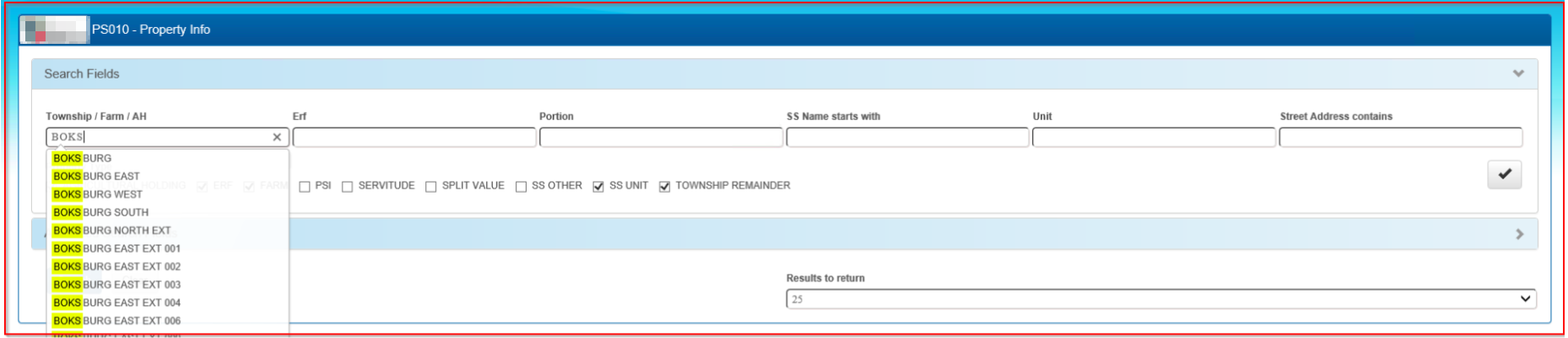
If the Erf number is available for this property, insert the Erf number into the 'Erf' field. If the property includes a Portion, insert the Ptn(Portion) number in this field. Some properties may be part of a Sectional Title scheme i.e.: Block of flats or a complex. In these cases insert the SS Number (Sectional Scheme Number) including the Unit number, follow step 2.1 for further help, then select 'Search'.
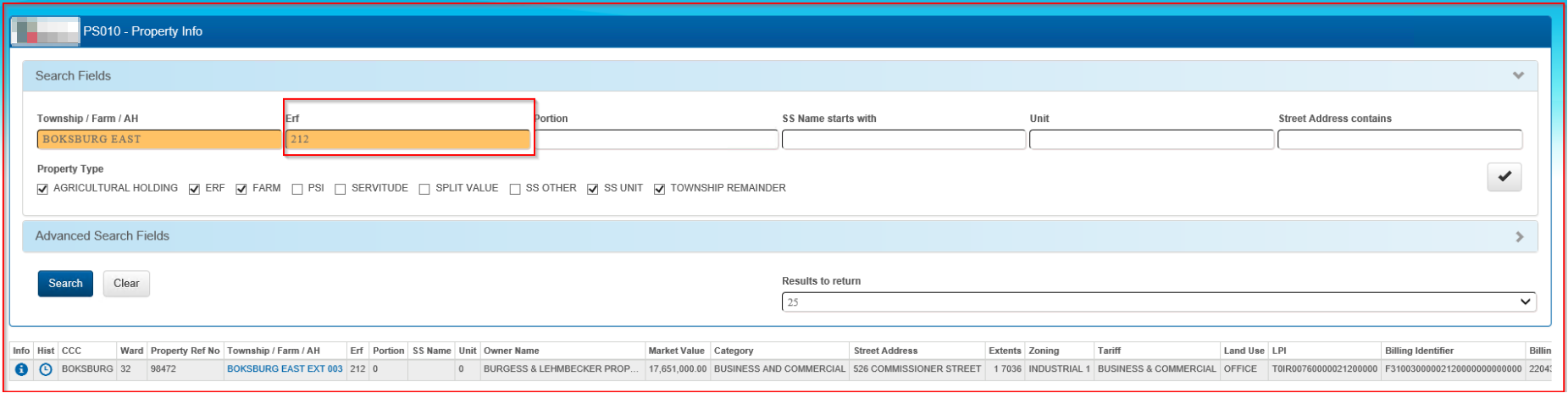
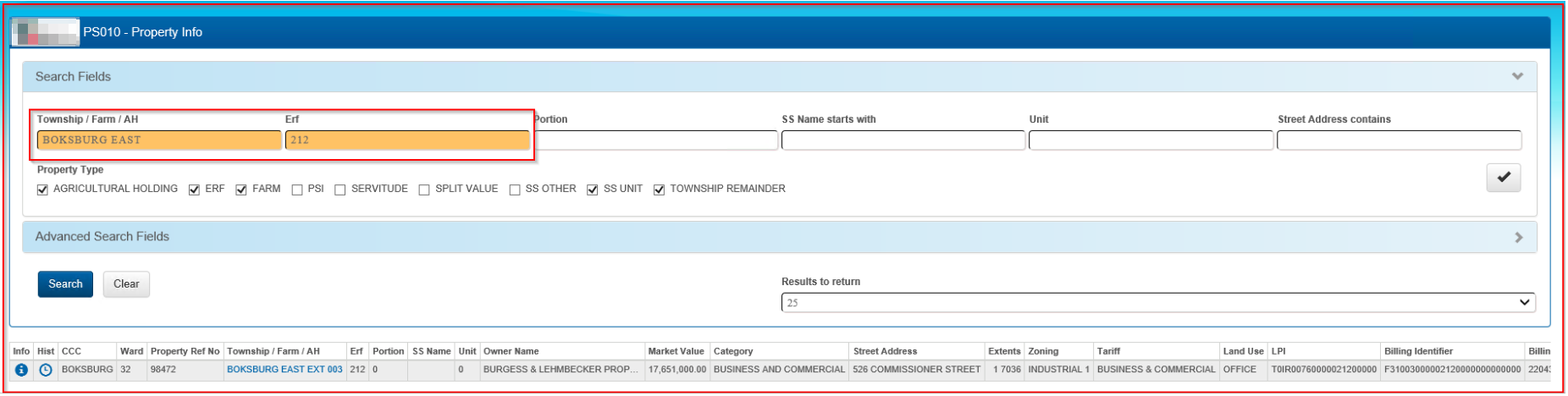
Note: A search can be done on any one field. For Example; if the Township name is not available, then a search in the Erf only field will return results. If the Erf number is not available and the Township is, then search in the Township field only.
Erf, Portion and Unit fields allow searching for a comma separated list or a range using a dash.
- For example, to find any of Erven 3, 6 or 9, enter 3,6,9 into the Erf search field.
- To search for values between 1 and 3, enter 1-3 into the Erf search field.
- To search for a specific number, add a comma following the number. For example to search for erf 3 enter 3, in the Erf search field.
Note that only one range search may be entered and command separated and range searches cannot be combined.
Fields that have already been searched will be indicated in orange.
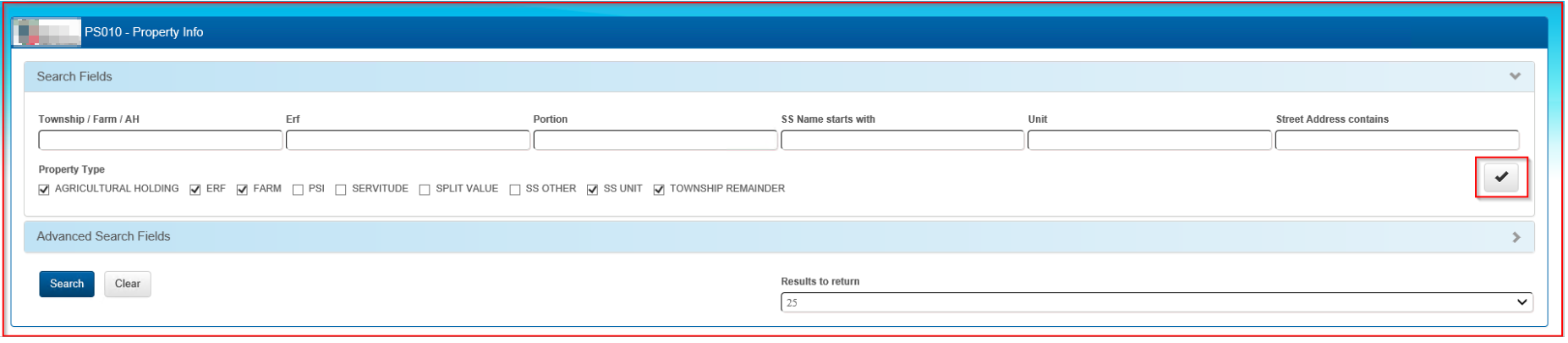
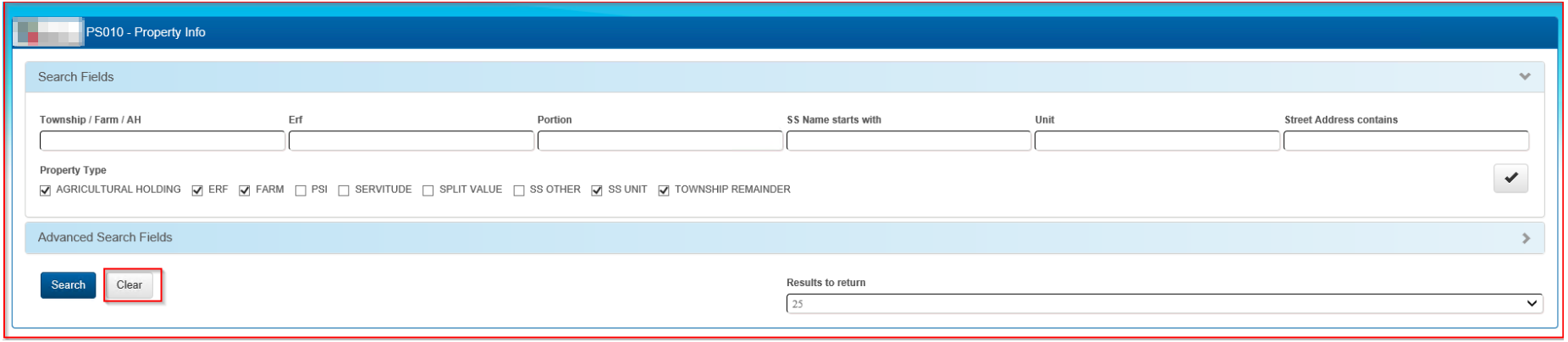
The Property Info page has 9 check boxes, when LIMS is opened the following boxes are automatically checked: Agricultural Holdings; ERF; Farm; SS Unit; Township Remainder. To clear these checked boxes and personalize the search, select the tick box on the far right of the screen. The result will clear the checked boxes, select the required fields you want to search only.
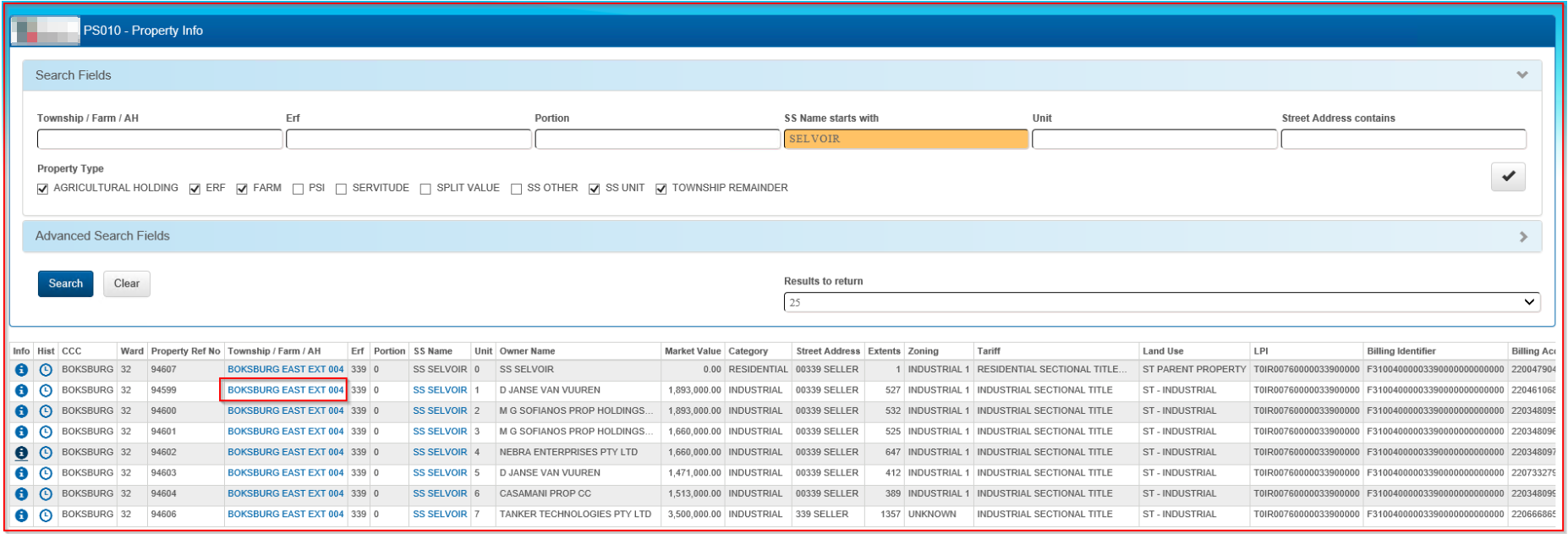
Step 2.1 - to search for a Sectional Scheme Name, insert the name into the 'SS Name start with' field, select 'Search'.
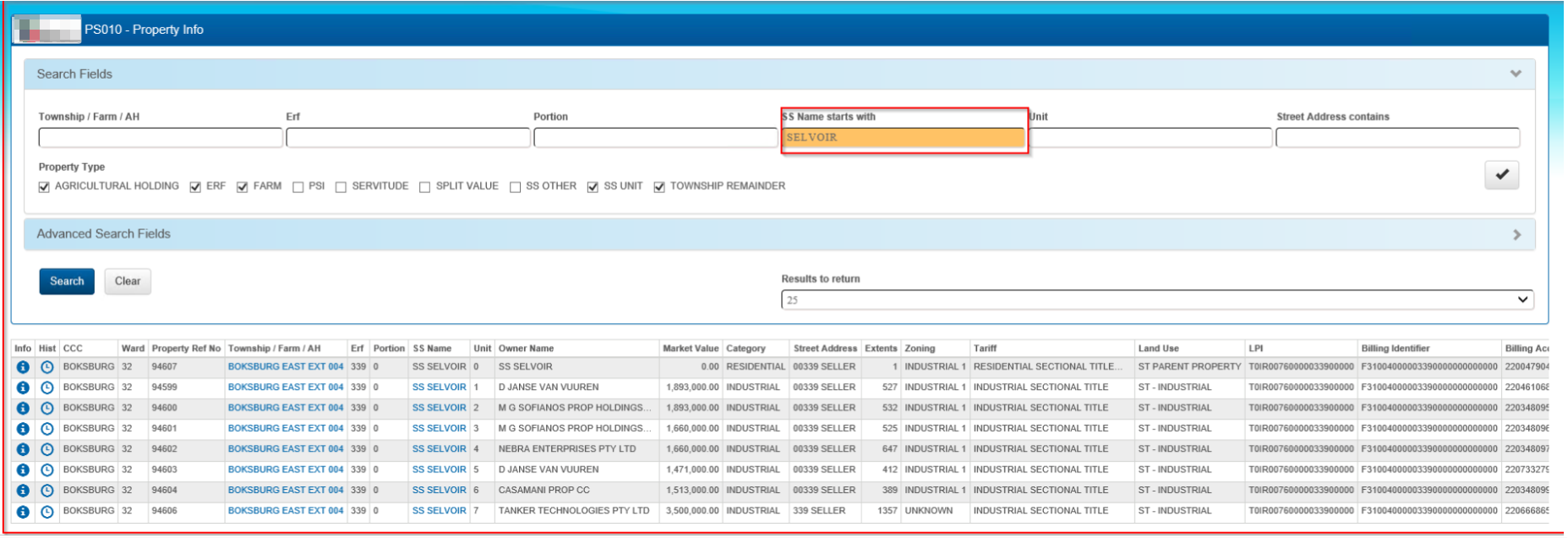
The search results will reveal all the Sectional Scheme phases with the same name along with their corresponding Unit Numbers.
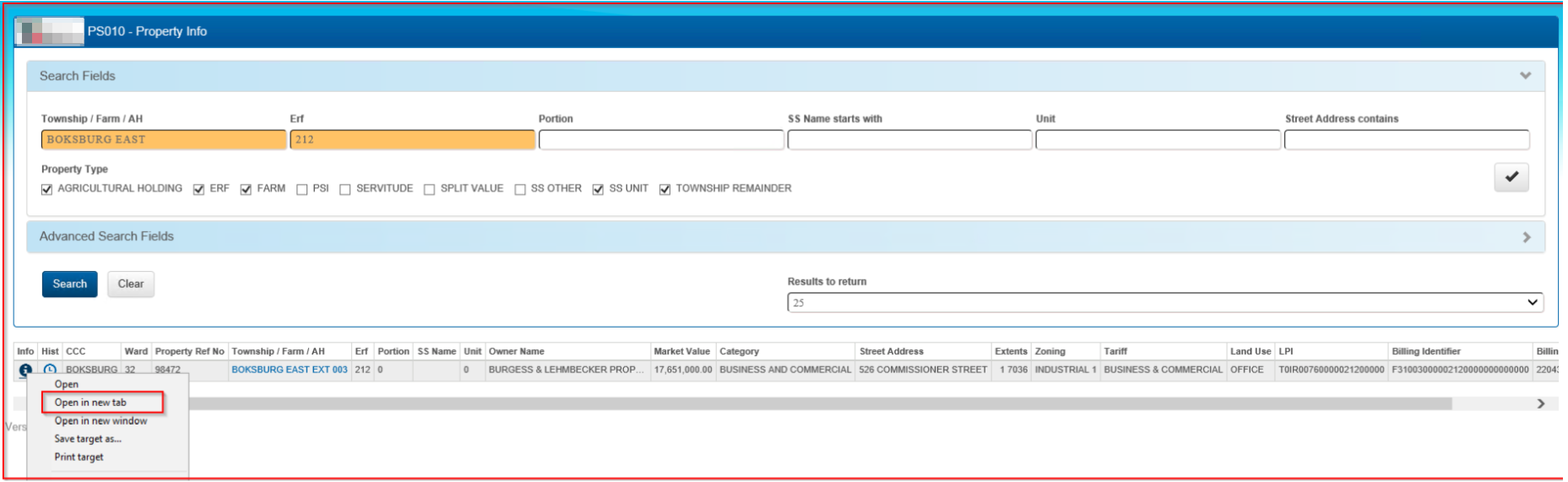
A line of information will appear below the search screen with the
property details. Right click the  Information
tab and select 'Open in new tab',
Information
tab and select 'Open in new tab',
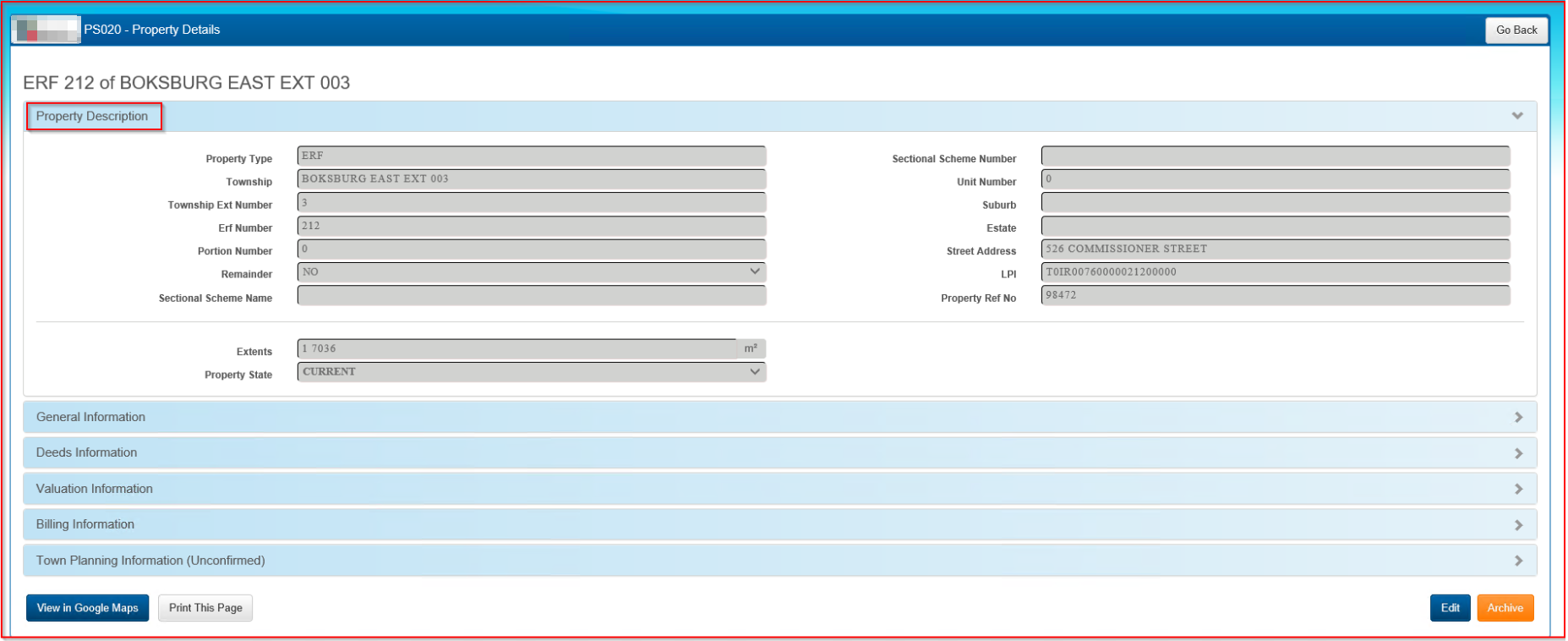
Opening the Property Description page will display the following information.
Note: Property History is only available to authorized users, under the heading Hist. (Refer to Property History for further instructions on this page)
Advanced Search
It may at times be necessary to insert some more extensive information so as to obtain the property details. In those cases use the 'Advanced Search Fields' function. This can be expanded to see additional fields which could optionally be searched on. If a property is not being displayed, it may be necessary to select additional fields for Property Type or Property Status.
The search results return a maximum of 25 entries by default. The results returned could be adjusted by selecting a value from the dropdown list on the 'Results to return' field either 100, 300 or 1000 and then clicking on the 'Search' button again.
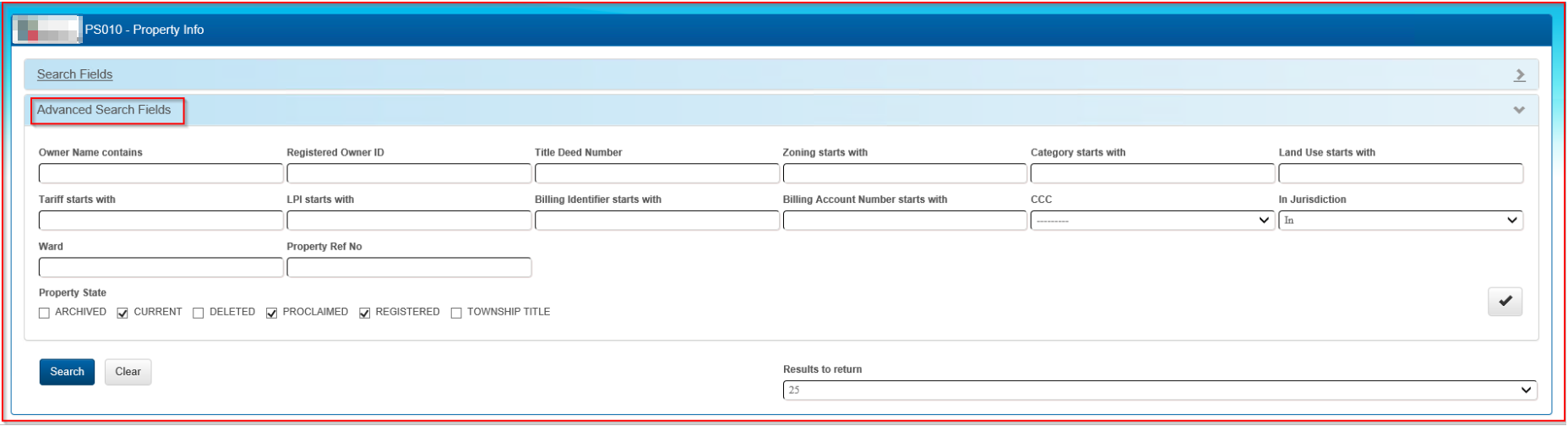
Below are results from an Advanced Search. Scroll through the list of properties and select the correct property.
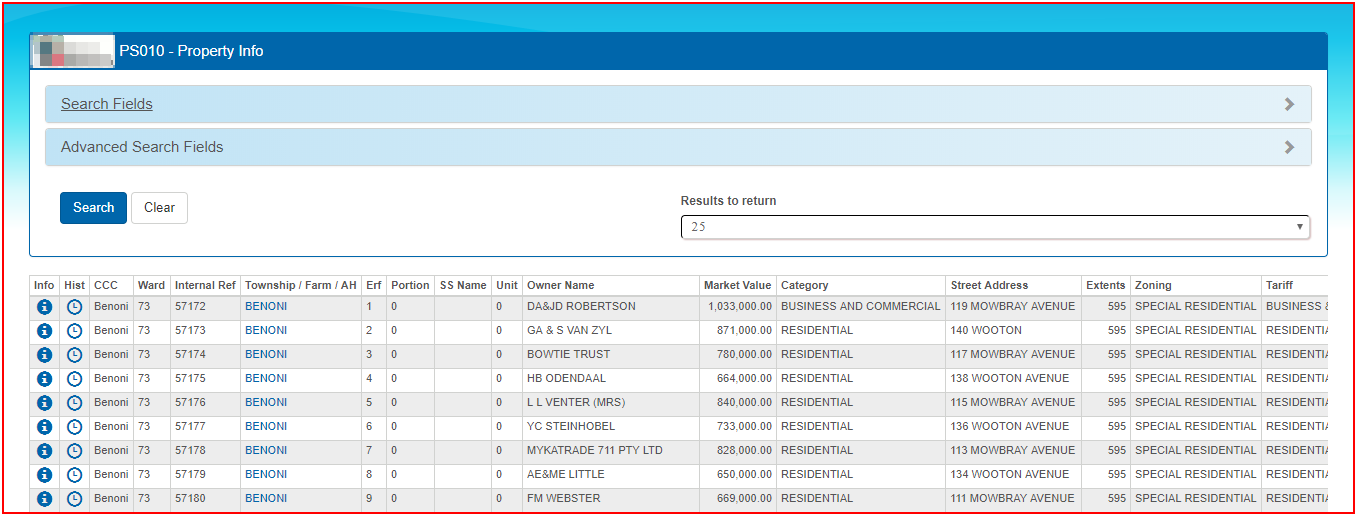
See sections below for details regarding the following items:
- For information on the property Info button column, see section PS020.
- For information on the Property History (Hist) button column, see section Property History
- For information on the Township / Farm / Agricultural Holdings column, see PS030.
- For information on the Sectional Scheme Name column (if available for a specific property), see PS040.
Note: The Hist(Property History) column, indicated by this icon
 is only visible to Authorized users.
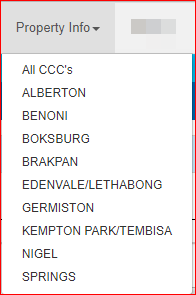
Search within a Customer Care Centre
Property searches can be limited to a specific Customer Care Centre (CCC). On the menu at the Property Info menu at the top, select the required CCC.
Clear search criteria
Clear previous search criteria with the 'Clear' button. This resets the search page back to the default search settings. New search criteria can be entered for a fresh search.
PS020 - Property Details
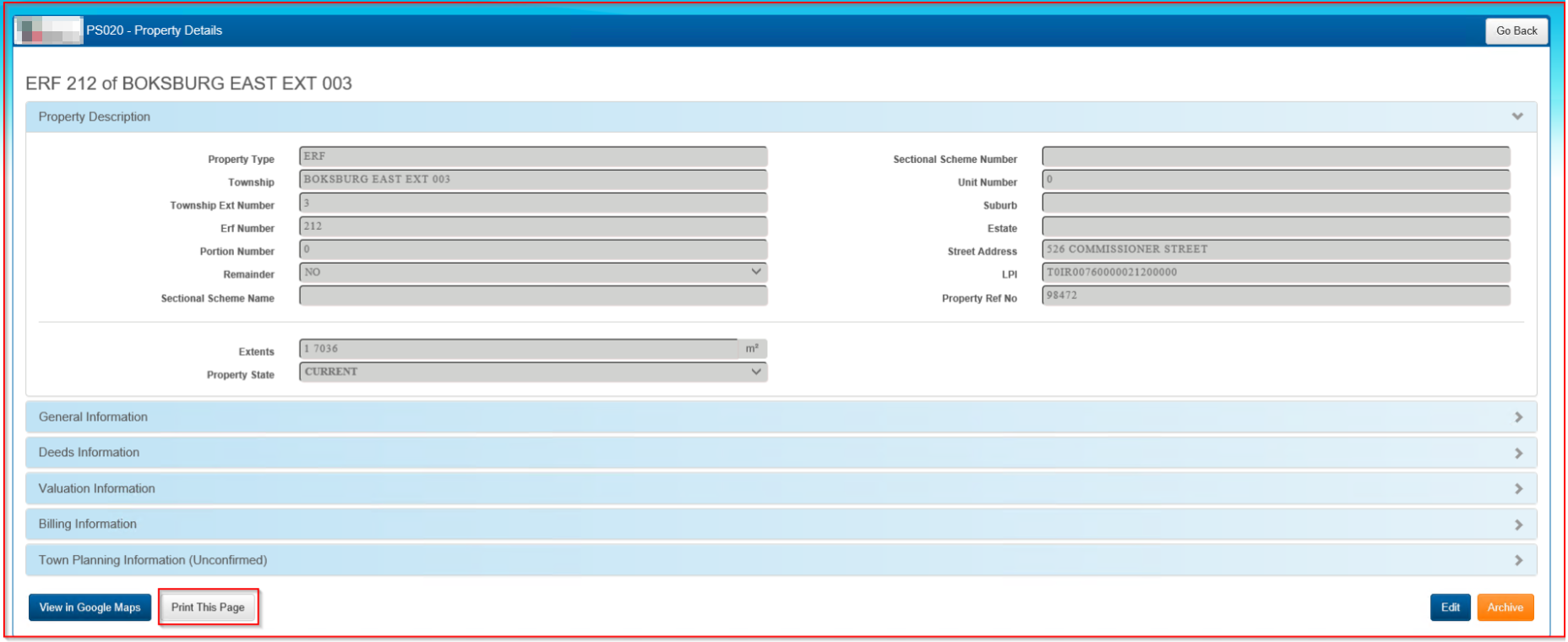
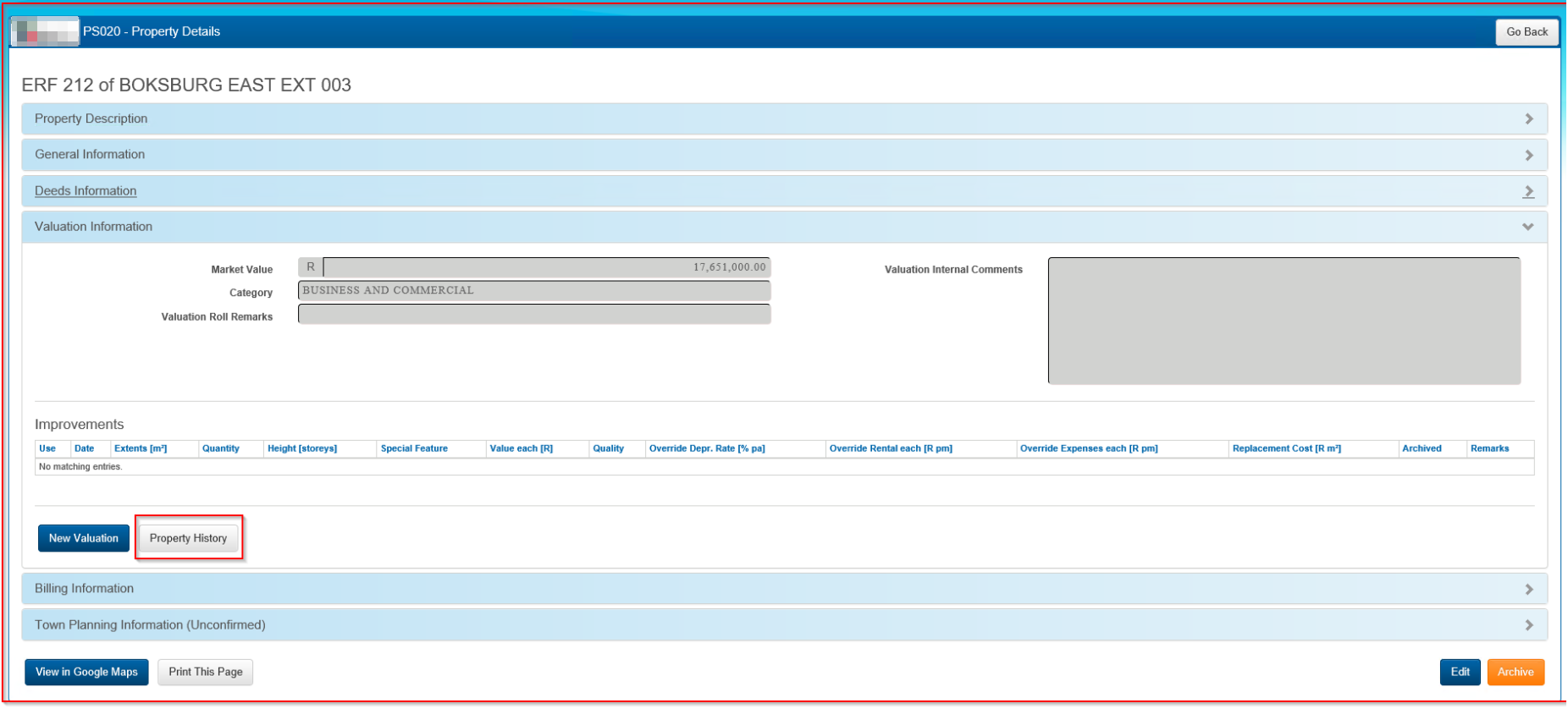
Property Description - this view shows the basic details of the property
At any stage of this step select 'View in Google Maps' to see the location of the property in Google Maps.
Note: At the installation of the system, the GIS coordinates, as publicly available from the Surveyor General, will be pre-loaded. However, these will not be updated until such time as integration with the municipal GIS is in place. Therefore, the 'View in Google Maps' option will not be available for new properties.
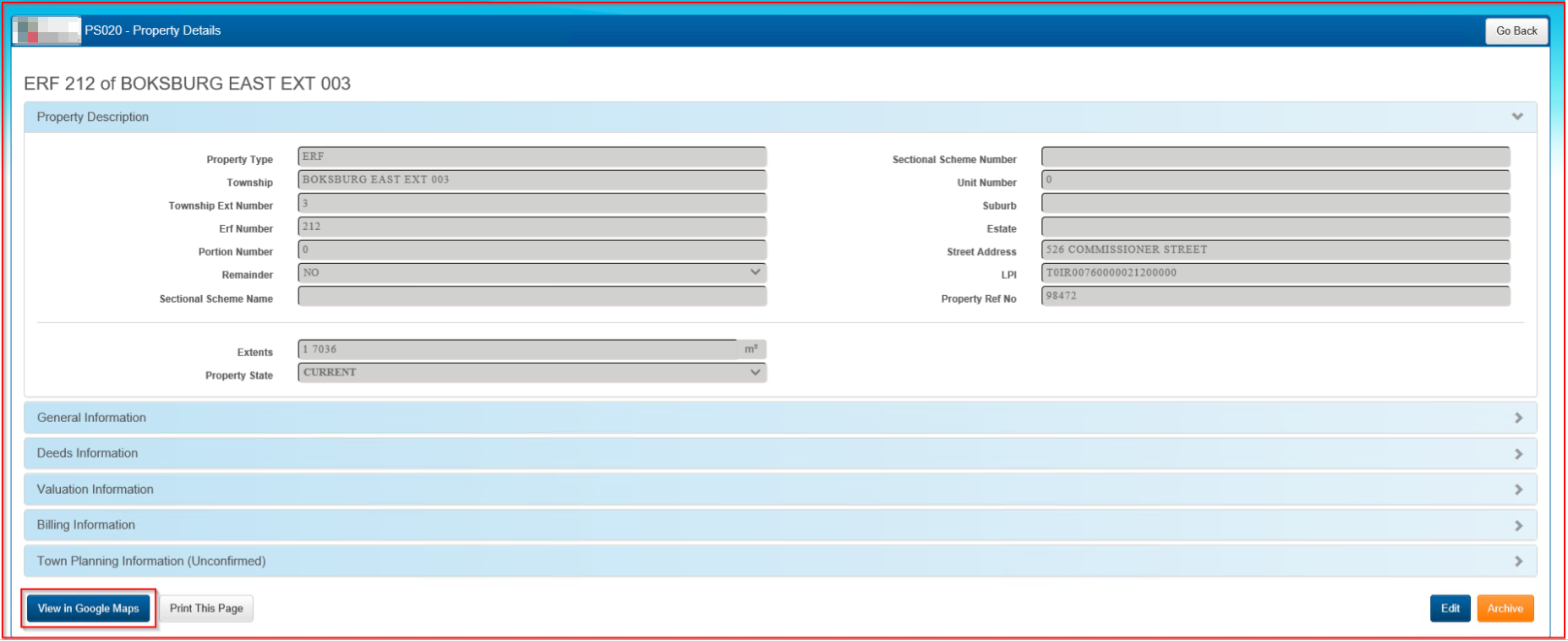
If necessary, there is an option to 'Print this Page'.
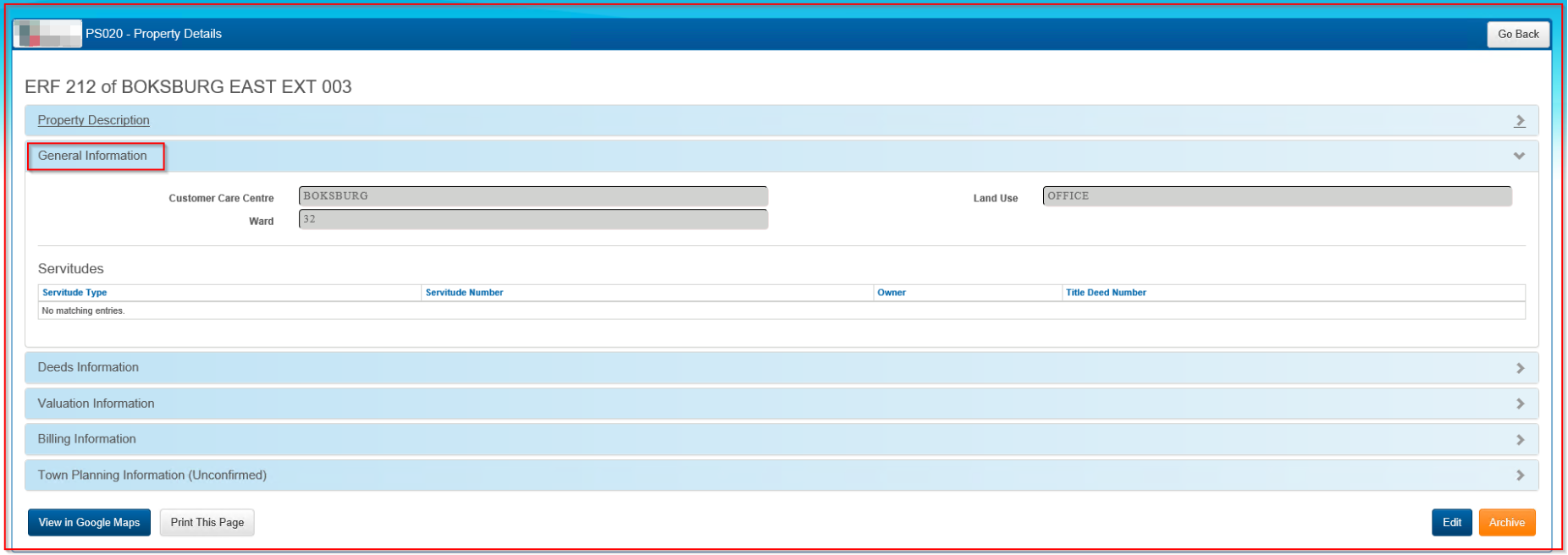
General Information - displays the CCC (Customer Care Centre), Land Use and Ward.
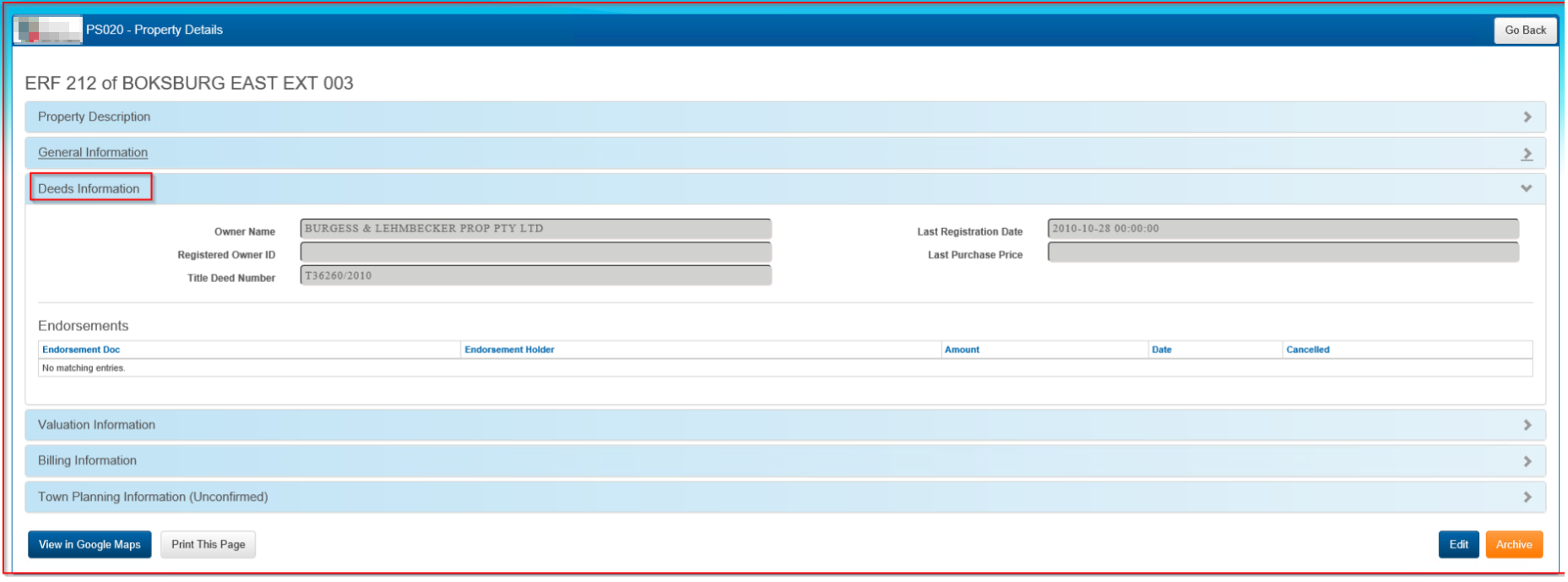
Deeds Information - the property Owners name, Title Deed Number and Last Registration date is available for view in this section.
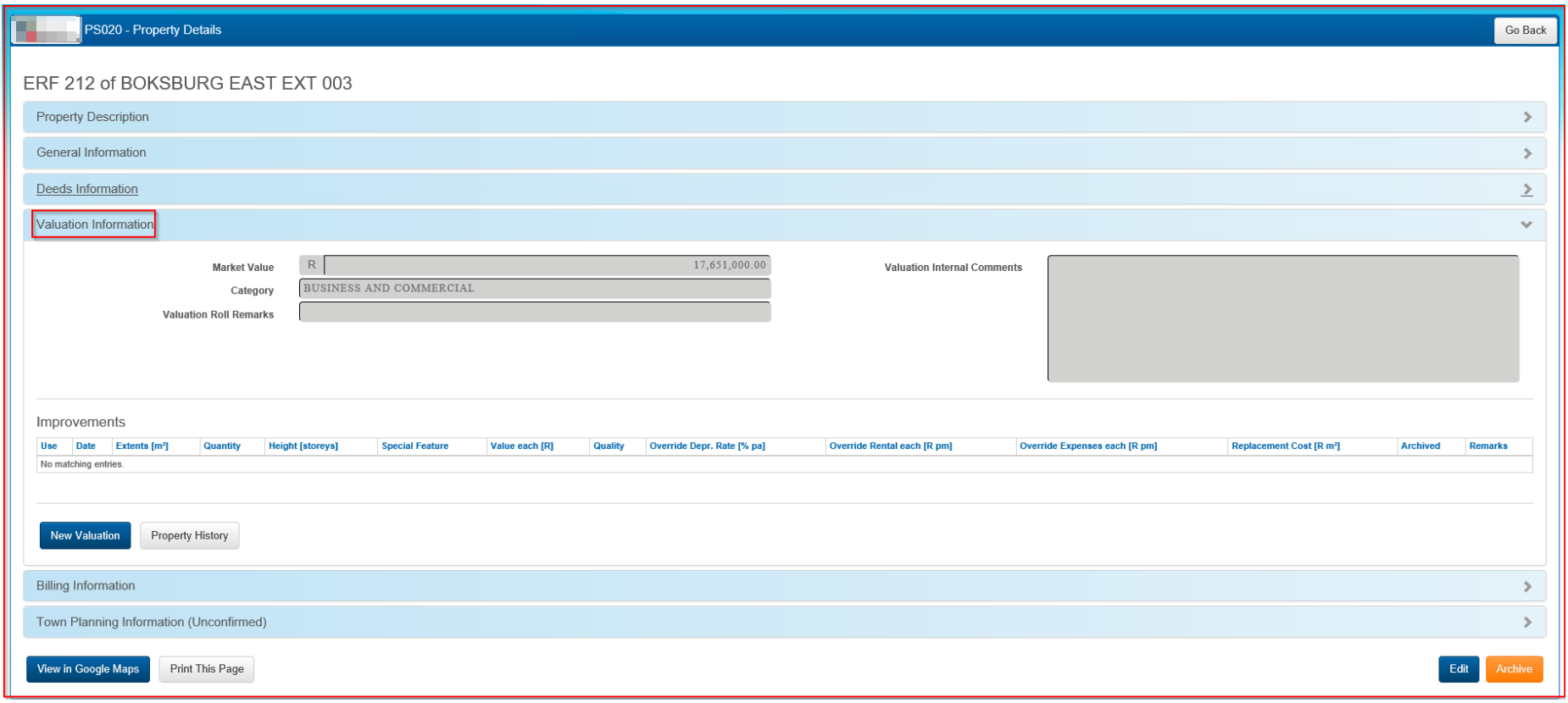
Valuation Information - this will allow access to the Market Value and Category of the property. Note: Valuation Internal Comments and Improvements are only visible to authorized users.
Property History - The details displayed on this page will depend on the types of information handled by the system at the time. For example, if no deeds transfer information have been loaded, no transfer data will display. Select 'Property History', it will open a new screen entitled PS022 - Property History Details
Note: details are only visible to authorized users.
PS022 - Property History Details
The detailed view below outlines all the history on the property, only if deeds transfer information has been loaded.
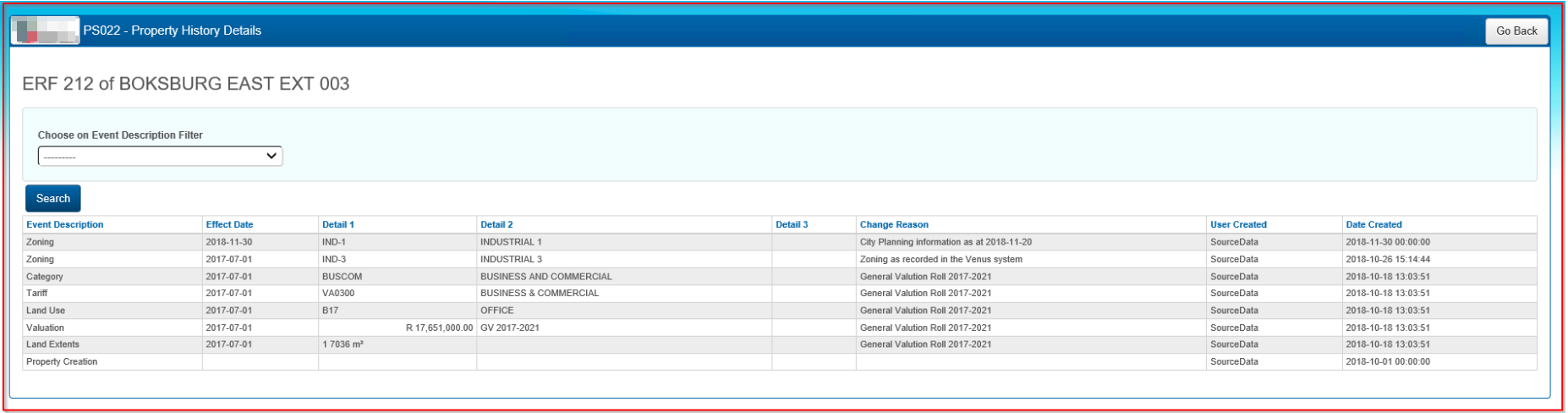
Event Description Filter - details may be filtered by selecting an event type from the drop down list.This allows a closer look at certain events pertaining to this property.
As an example select 'Category' from the drop down list and select 'Search'

To return to the previous screen at any time, select 'Go Back'.

PS030 - Locality
The Locality view shows properties that fall within a specific locality, such as a Township, Farm or Agricultural Holding. Select 'Search', the list shows the details of the property. To navigate to the locality view, select the name of the Township/Farm/Agricultural Holding/Sectional Scheme Name, as indicated below.
Filter for specific properties by using the provided filters. For example, there is a drop down list for Property Type, select the type of property to look at, in this case Erf. In the Property State field select Registered, then select Search.
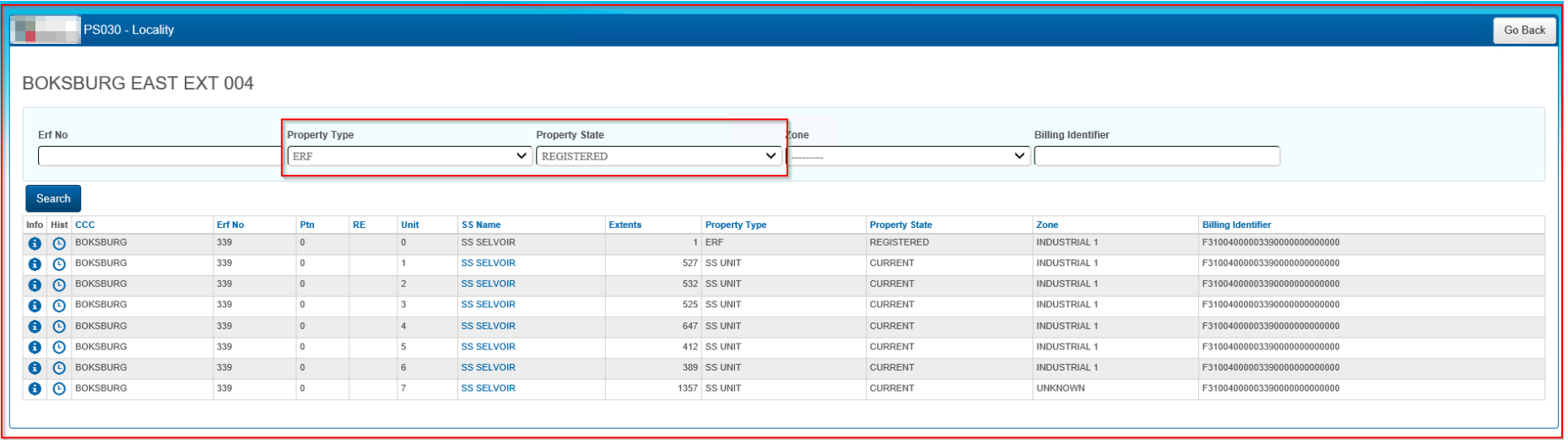
The results of this search will reveal all the Erven within that Locality that are Registered. Customize the filter to suit whatever criteria is being searched.

Select the property from the Locality view, it will then refer to the PS020 Property Details page which is outlined at the outset of this user guide.
PS040 - Sectional Scheme Phase
This view is visible by following Step 2.1 in this user guide, and select the SS Name (Sectional Scheme Name).
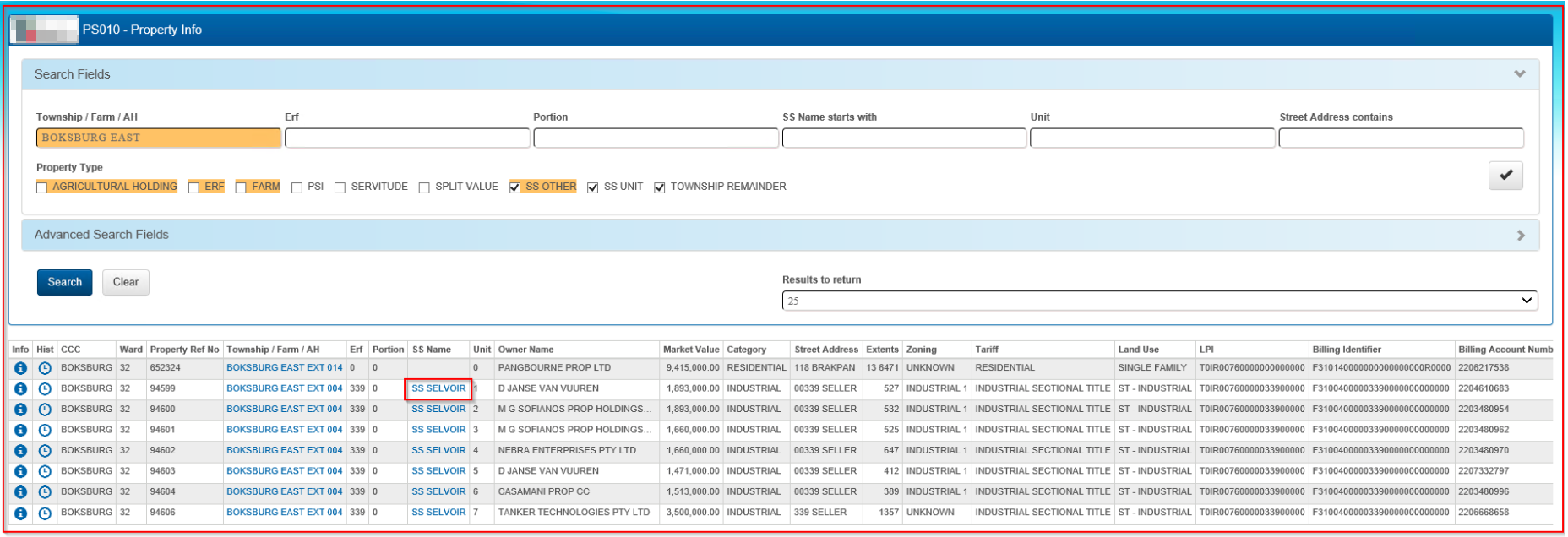
It shows the Sectional Scheme properties associated with a specific Sectional Scheme phase.
Note: A single Sectional Scheme may have properties associated with different phases. To see all the properties in a sectional scheme, use the Advanced Search, or filter the list in the Locality view.
